

Automate Recurring Tasks with Salesforce Flow
When I first tried to create a recurring task in Salesforce using Flow, I hit a wall.
I kept finding tutorials for how to make a task repeat manually through the UI. Or they showed how to build a scheduled flow to generate recurring tasks. But neither was a fit for the use case that I needed.
I had a record-triggered flow that already created tasks. I just needed one of those tasks to be recurring. And although the due date would be 30 days out, it wasn’t like a new task needed to be created every 30 days. And I didn’t want a long series of tasks either.
There were no clear tutorials for how to generate recurring tasks in a record-triggered flow. So I figured it out myself. And now I’m going to show you how to do it, step by step.
The Problem with Other Solutions
Most of the advice out there assumes you’re:
- Creating a task by hand (not using Flow), or
- Building a big scheduled automation to create a series of recurring tasks
That’s fine in some cases, but as I stated above, didn’t really work for my use case.
The good news? You can do it by setting a few lesser-known standard fields on the Task record.
The Simple Solution: Repeat This Task
We’re going to walk through how to:
- Add a Create Records element to your flow to create a new Task
- Set the right fields to make the task repeat
- Skip the need for any scheduled flows
What We’re Building
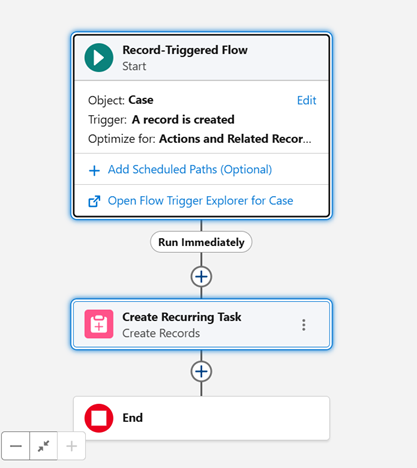
You’ll have a record-triggered flow that creates a task—and that task will repeat based on when the user completes the original task.
Step 1: Understand the Fields You Need
When you’re creating a recurring task in Flow, you need to set some standard fields that Salesforce doesn’t normally use in the UI. Note: This is an important step. Repeat This Task and RecurrenceInterval both need to be visible on the Task page layout.
Here are the key fields you’ll need to know:
| Field Name | Field Values | What It Does |
|---|---|---|
| RecurrenceInterval | Number | The number of days after the task’s due date or completed date when you want the next task to be due. |
| RecurrenceRegeneratedType | After due date/After date completed/(Task Closed) | Makes sure the new task is assigned the correct expected due date |
I’ll link to the documentation, but here’s just a quick run down of the picklist choices for RecurrenceRegeneratedType and what they mean.
- After Due Date: Creates recurrences with a due date set to the RecurrenceInterval value plus the previous task’s due date.
- After Date Completed: Creates recurrences with a due date set to the RecurrenceInterval value plus the date the task was completed.
- (Task Closed): Indicates that the task was closed as part of a repeating series.
Step 2: Add Your Task Create Records Element
For this example, we’ll use the scenario I mentioned at the start of the post.
When a Case is created, generate a new Task. The new task should have a due date set to 30 days from today. Completion of this task should generate a recurring task with the same subject and a due date 30 days after the original due date.
- Create your record-triggered flow, and add a new Create Records element that creates a Task.
- Set your usual Task values (like Subject, WhatId, etc.)
- Then include all the recurrence fields listed above:
- RecurrenceRegeneratedType = After Due Date
- RecurrenceInterval = 30 (This is a required field when using RecurrenceRegeneratedType, although it is not marked as required on the page layout.)

Step 3: Test It Out
- Run your flow in debug mode or trigger it by creating the right record. Personally, I prefer to test it in Debug Mode first to verify that the output has the correct values.
- Go to the Debug Log and check the Task that was created. You should see the due date is 30 days from today.
- Now Activate your flow.
- Trigger your flow to run by creating the right record. You should see the Task in the Activity Timeline. Make a note of the due date.
- Mark the task as Completed, and refresh the Activity Timeline.
- You should now see a new Upcoming Task with the same subject line. But check out the due date! It is 30 days from the original task’s due date.
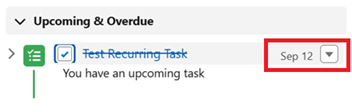
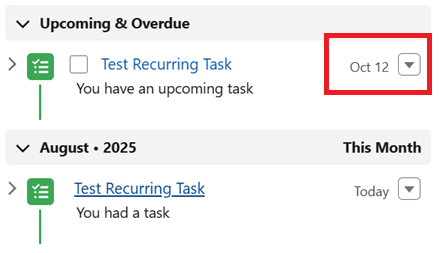
🎉 That’s It! Now you’ve got:
- A record-triggered flow that creates tasks ✅
- A repeating task that doesn’t require a schedule-triggered flow ✅
- Full control over how often the task repeats ✅
Bonus Tip: End the Repeating Task (Optional)
Want the recurring task to stop after a while? You’ll first need to trigger an automation to run. For instance, when a Case’s status is updated to Closed or something along those lines. This should launch another record-triggered flow.
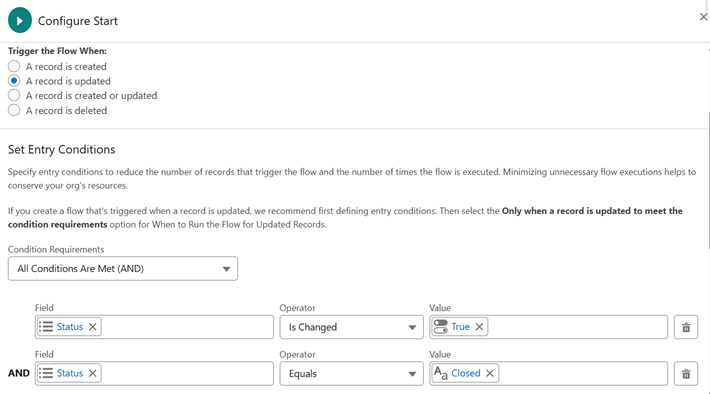
Set the Task.RecurrenceRegeneratedType to (Task Closed) at the same time as the Task.Status is marked Completed. This will stop any future tasks from being created.
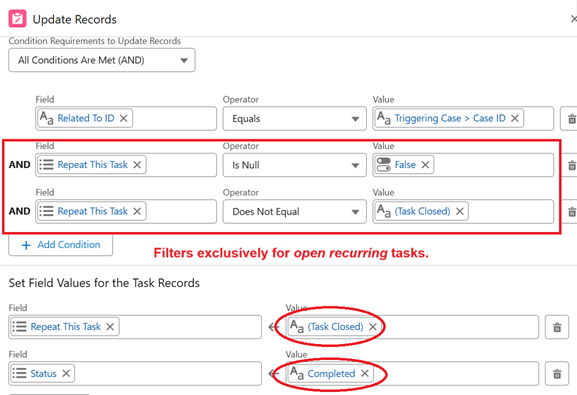
And viola!

If you get stuck or something’s not working, drop a comment below. I’d love to help.
And if you want more Salesforce flow tutorials, check out the following posts: